> For the complete documentation index, see [llms.txt](https://usermanual.doctranslate.io/llms.txt). Markdown versions of documentation pages are available by appending `.md` to page URLs; this page is available as [Markdown](https://usermanual.doctranslate.io/pdf-tools/split-pdf.md).
# Split PDF
**Split PDF** lets you extract one or more page ranges from a PDF and save them as separate files — right in your browser, no account required.
### **How to Use**
The process is simple and consists of three basic steps:
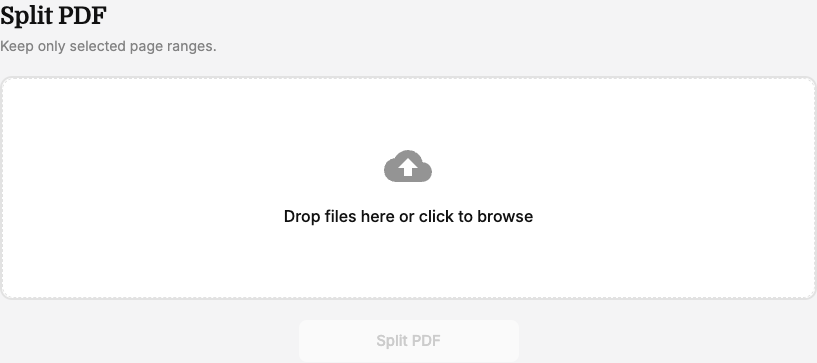
#### **Step 1: Upload Your File**
* Go to **PDF Tools** and select **"Split PDF."**
* Drag and drop a PDF file into the upload area, or click to browse your computer.
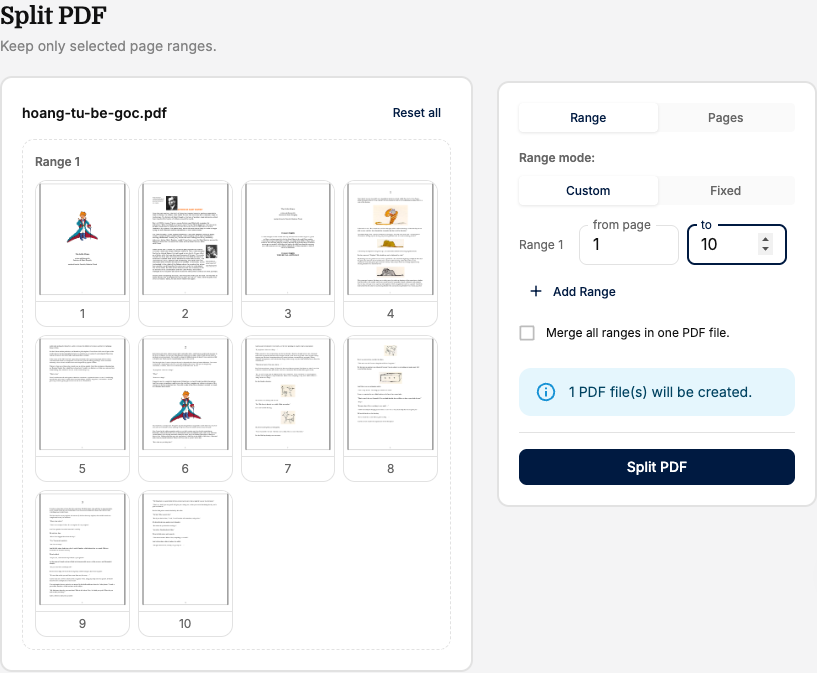
#### **Step 2: Choose Your Page Ranges**
* Enter the page range you want to keep (for example, page 1 to 10). Click **"+"** to add more ranges if you need several separate files.
* Switch to **Pages** mode instead of **Range** if you'd rather list individual page numbers.
* Choose **Fixed** range mode to automatically split every N pages, or keep **Custom** to set exact ranges yourself.
* Enable **"Merge all ranges in one PDF file"** if you want the selected ranges combined into a single output instead of separate files.
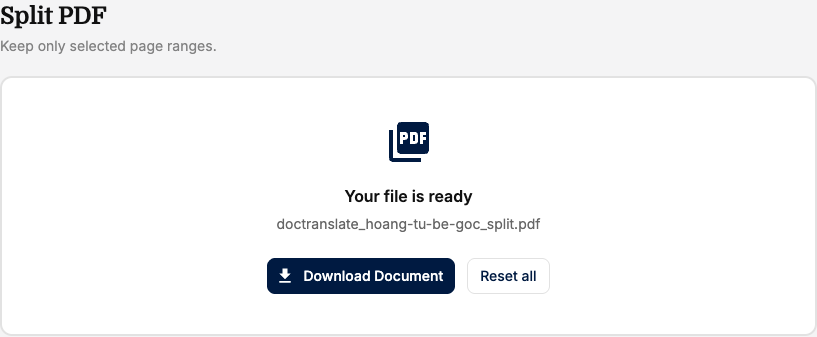
#### **Step 3: Split and Download**
* Click **"Split PDF."**
* Once processing is complete, click **"Download Document"** to save the resulting file(s) to your device.
***
*📌 **Note:** Split PDF is completely free and does not require an account. You can define multiple page ranges in a single split.*